View Log Settings (Utilities)
The View Log Settings panel provides access to system logs for troubleshooting purposes. System logs can be selected to be viewed based on log file type, category, date, and time.
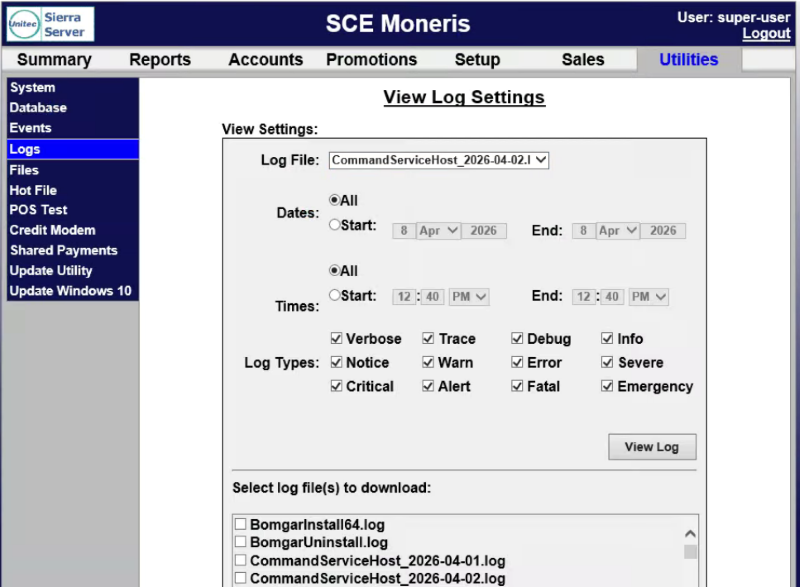
View Settings
The View Settings section contains log file, date, time, and log type(s) settings to specify the information included in the generated log.
Log File
The Log File setting provides the ability to select the log type to generate and view.
Dates
The Dates section provides the ability to specify whether to generate the log file for all dates or a specific date range (start and end).
All
The All setting provides the ability to generate the log file for all dates.
Start | End
The Start and End date settings provides the ability to specify a starting time (hours and minutes) and ending time (hours and minutes) for which to generate the log file.
Times
The Times section provides the ability to specify whether to generate the log file for all time or a specific time range (start and end).
All
The All setting provides the ability to generate the log file for all time.
Start | End
The Start and End time settings provides the ability to specify a starting time (hours and minutes) and ending time (hours and minutes) for which to generate the log file.
Log Types
The Log Types setting provides the ability to select the log content to view.
- Verbose
- Trace
- Debug
- Info
- Notice
- Warn
- Error
- Severe
- Critical
- Alert
- Fatal
- Emergency
View Log
The View Log function provides the ability to generate and view the log(s) based on the selected settings.
Select log file(s) to download
The Select log file(s) to download section provides the ability to select and download specific log files.
Updated: 042726