All Products Sold at this Site (Setup)
The All Products Sold at this Site panel provides the names and prices for wash packages, self service devices, added services, and multi-wash accounts are configured through the Products panel. This panel allows the user to add, delete, and edit wash packages and added services. The system is pre-loaded with 4 default wash packages: Express Wash, Super Wash, Deluxe Wash, and Works Wash.
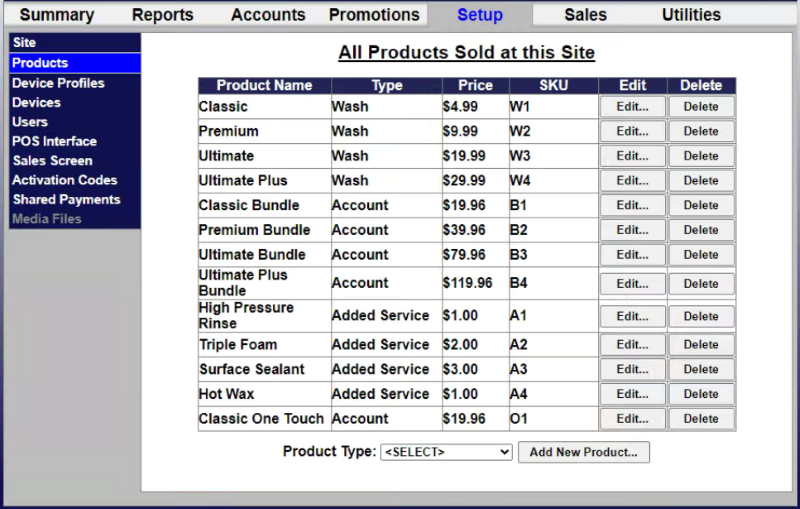
Table Columns
- Product Name: The product's name.
- Type: The product type. There are 4 types: Account, Added Service, Self Service, and Wash.
- Price: The product's price.
- SKU: The product's SKU number.
- Edit: Opens the product's Edit Product Configuration panel.
- Delete: Deletes the product. A prompt appears, asking Are you sure you want to delete the selected product? Select OK to delete the product. Select Cancel to keep the product.
Add New Product
Products can be added with the Add New Product function. First select the type of product from the Product Type drop-down list and then select Add New Product. There are 4 product types:
- Wash: Any number of wash packages may be added, but only 16 wash packages can be assigned to a device, 8 shown washes and 8 hidden washes. The default wash packages can't be deleted while assigned to a device profile. They must be removed from the profiles they're assigned to before they can be deleted.
- Added Service: Services that can be added to wash packages or made available as upgrades for account sales. Any number of added services may be added, but only 4 added services may be added to a wash per transaction.
- Self Service Device (WashPay Only): Wash package assigned to self-service devices. Any number of self service wash packages may be added, but only 1 wash package may be assigned to a bay at one time.
- Account (Portal, Sentinel and C-Start Only): House account programs configured for a multi-use wash bundle redeemable with a code. For example, the customer buys a “4 washes for the price of 3” bundle. The customer then receives a receipt with a code printed on it to redeem the remaining washes. Any number of multi-wash accounts may be added, and up to 4 accounts may be assigned per unit. Note: A product-based house account or loyalty account must be created first, then the account can be added as a product. See Prepaid Accounts for more information. It's recommended that regular wash packages be assigned to one wash type while multi-wash bundle packages be assigned to another. See Wash Types and Washes Dispensed for more information.
Once added, products can be assigned to the appropriate device through the device profile programming pages. If changes are made to a product’s displayed name or price, the affected devices must be updated by downloading a device profile. See Device Profiles for more information.
Updated: 042726