Site (Setup)
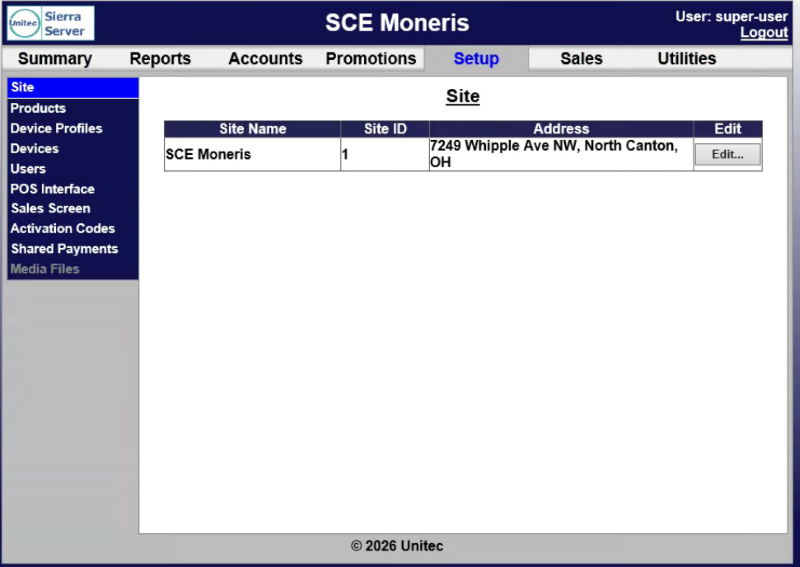
The Site panel lists information for each site configured for an organization. Table entries contain a Site Name, Site ID, Address, and an Edit function.
Site Configuration
Select Edit next to a site to open its Site Configuration panel.
Site Name
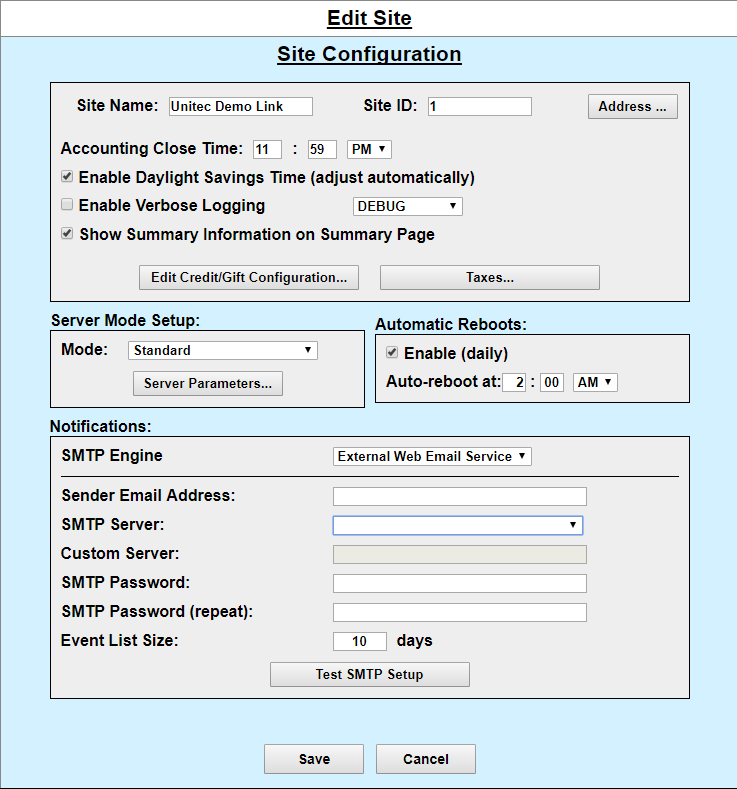
Enter the site's name. This field is limited to 25 characters. The site name appears at the top of the SierraX Management pages and on the system reports.
Site ID
Enter the site's ID number. The default is set to 1. The site ID number is shown in alert notifications sent via text message to identify the site from where the alert is sent. Note: Each site must have a unique Site ID number.
Address
Select to open the site's Site Information panel.
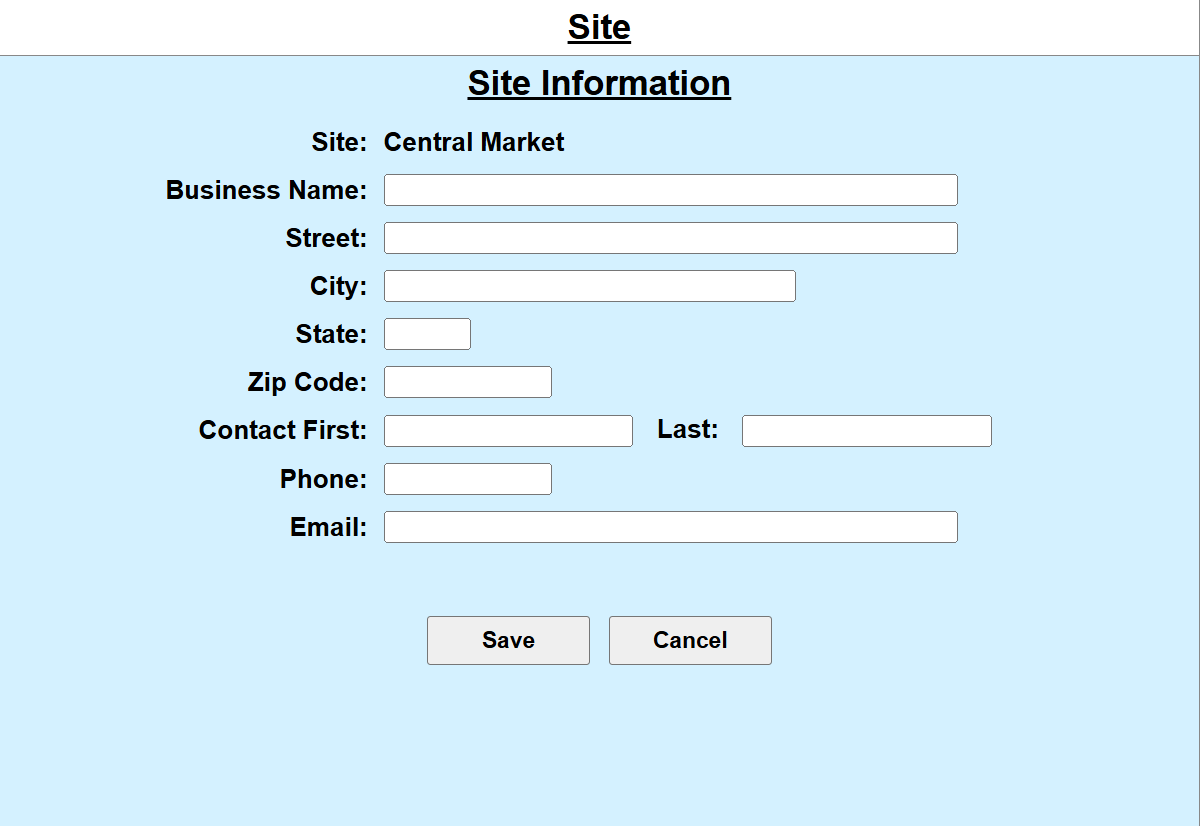
- Site: Displays the site name.
- Business Name: Enter the site's business name.
- Street: Enter the site's street address.
- City: Enter the city of the site's location.
- State: Enter the state of the site's location.
- Zip Code: Enter the ZIP code of the site's location.
- Contact First: Enter the first name of the site's contact person.
- Last: Enter the last name of the site's contact person.
- Phone: Enter the site's phone number.
- Email: Enter the site's email.
- Save: Saves the site information and returns to the Edit Site panel.
- Cancel: Cancels editing the site's information and returns to the Edit Site panel.
Accounting Close Time
Enter the time at which the site stops accounting for a given day. The default is 11:59 PM.
Enable Daylight Savings Time (adjust automatically)
Allows the site's Server to automatically adjust for Daylight Savings Time.
Enable Verbose Logging
Enables verbose logging. It's selected by default. This allows the system to record messages relating to the performance of the system that DRB staff can then use to troubleshoot future problems. Select the type of logging to generate from the drop-down list:
- Stack
- Verbose
- Trace
- Debug
- Info
- Notice
- Warn
- Error
- Severe
- Critical
- Alert
- Fatal
- Emergency
Show Summary Information on Summary Page
Enables the Summary Data section of the Summary page to account for and display the site's data.
Edit Credit/Gift Configuration
Opens the Credit/Gift Configurations panel. See Credit Processors and Configuration for more information.
Taxes
Opens the site's Taxes Configuration panel. See Taxes for more information. Note: This isn't available if the Mode (see below) is External or SiteLynx.
Mode
Select the Server mode from the drop-down list:
- Standard: For standard carwashes.
- External: For sites with WashSoft, Auto Pilot, or other third-party servers.
- SiteLynx: For sites using multi-site management.
- Director Connector: For sites using DRB's Director management system. Note: Select this option if using an X-Start or a Remote Code POS4000.
Server Parameters
Opens the site's <Mode> Server Setup panel where <Mode> is the Mode selected. Note: This isn't available when the Mode is External. See Server Parameters for more information.
Enable (daily)
Enables the site Server to reboot daily.
Auto-reboot at
Enter the time when the site Server should reboot itself. The default setting is 3:00 AM.
SMTP Engine
Select the SMTP engine from the drop-down list:
- None
- Local Mail Folder Pickup (recommended)
- External Web Email Service
- Custom External Server
Sender Email Address
Enter the FROM email address that will notify users when an email from the site has been sent. NOTE: Due to SMTP mail changes, if email notifications aren't being received, an alternate email notifications setup must be used. See Appendix B for setup information.
SMTP Server
Only available if the SMTP Engine is External Web Email Service. Select the SMTP server from the drop-down list:
- <Blank>
- Gmail (smtp.gmail.com)
Custom Server
Only available if Custom External Server is selected as the SMTP Engine. Enter the IP address of the custom external server.
SMTP Password
Only available if External Web Email Service or Custom External Server is selected as the SMTP Engine. Enter the SMTP password.
SMTP Password (repeat):
Only available if External Web Email Service or Custom External Server is selected as the SMTP Engine. Re-enter the SMTP password.
Event List Size
Enter the number of days, 1-99, for which data is presented on the Event List.
Test SMTP Setup
Tests if an email can successfully be sent and received using the current configuration.
Save
Saves the Site Configuration information and returns to the Site panel.
Cancel
Cancels edits to the Site Configuration information and returns to the Site panel.
Updated: 042726